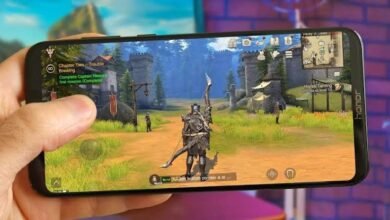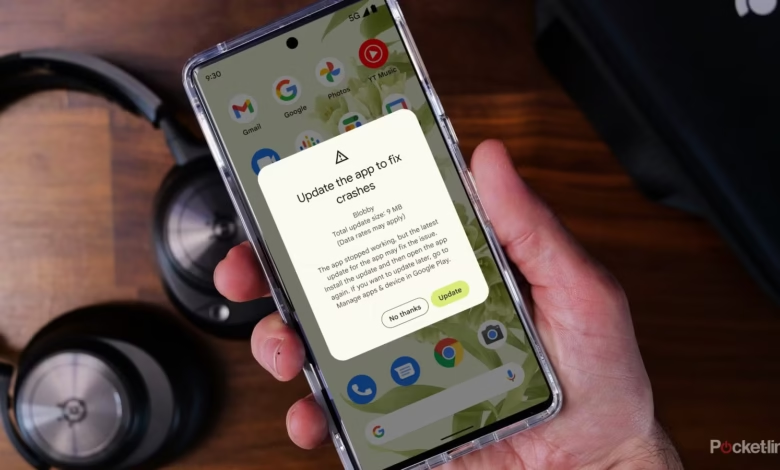
Mobile gaming is a popular way to enjoy entertainment, compete with friends, and explore new worlds. However, game crashes can interrupt gameplay and cause frustration. A mobile game may suddenly close, freeze on the loading screen, or stop responding during a match.
These problems can occur on both Android and iOS devices. Fortunately, most common game crashes can be fixed with a few simple troubleshooting steps. In this guide, you will learn why mobile games crash and how to solve these problems for a smoother gaming experience.
1. Restart Your Mobile Device
Restarting your phone is one of the easiest ways to fix a game that keeps crashing. Running multiple applications for a long time can consume system resources and cause temporary software problems.
A restart closes background processes and refreshes your device’s memory.
How to fix it:
- Save your progress if the game allows it.
- Restart your smartphone.
- Open the game again and check whether the problem continues.
If the game crashes occasionally, restarting your device may be enough to solve the issue.
2. Check Your Phone’s Storage Space
Low storage space can prevent mobile games from running correctly. Many modern games require additional space for updates, downloaded resources, temporary files, and saved data.
When your phone is almost full, a game may crash during startup or while loading a new level.
How to fix it:
- Open your phone’s Settings.
- Find the Storage section.
- Check how much free space is available.
- Remove unnecessary downloads, duplicate files, or unused applications.
- Restart the game.
Avoid deleting important files or game data without creating a backup. Keeping sufficient free storage can help your device run more reliably.
3. Clear the Game’s Cache
Temporary files help games load information more quickly, but corrupted or outdated cache files can sometimes cause performance problems.
On Android, clearing the cache may fix crashes without deleting your game progress.
Steps for Android:
- Open Settings.
- Select Apps or Applications.
- Choose the game that keeps crashing.
- Tap Storage or Storage and cache.
- Select Clear cache.
- Launch the game again.
Be careful not to select Clear data or Clear storage unless you understand the consequences. These options may remove local settings, downloads, or unsynchronized progress.
On iPhone, you may need to restart the app or reinstall it if clearing temporary files is not available.
4. Update the Game to the Latest Version
Developers regularly release updates to fix bugs, improve compatibility, and address known crashing issues.
An outdated version may stop working properly after an operating system update or a change to the game’s online services.
How to update your game:
- Open the Google Play Store on Android or the App Store on iPhone.
- Search for the affected game.
- Check whether an update is available.
- Install the update and restart the game.
Always download updates from official app stores or trusted sources recommended by the developer.
5. Update Your Phone’s Operating System
Sometimes, the problem is not with the game itself. An outdated operating system may lack important fixes or compatibility improvements required by newer games.
Check your phone’s system settings for available software updates. Before installing a major update, make sure your device has enough battery power and that important files are backed up.
If a game started crashing immediately after a system update, check the developer’s support page for known compatibility problems.
6. Close Unnecessary Background Applications
Running too many applications simultaneously can put pressure on your phone’s available memory. This is particularly common when playing demanding games on devices with limited RAM.
Background applications may also consume battery power, network bandwidth, and processing resources.
Try these steps:
- Close applications you are not using.
- Stop unnecessary downloads or updates.
- Disable screen recording if it is affecting performance.
- Restart your phone before launching a demanding game.
Avoid using aggressive memory-cleaning applications that promise unrealistic performance improvements. Your phone’s built-in system management is generally a better starting point.
7. Check Your Internet Connection
Online games may disconnect, freeze, or return to the loading screen when the internet connection becomes unstable. Although network problems do not usually explain every type of crash, they can cause interruptions that look like a game failure.
How to troubleshoot network issues:
- Switch between Wi-Fi and mobile data to compare performance.
- Move closer to your Wi-Fi router.
- Restart your router if other devices also have connection problems.
- Check whether the game servers are experiencing an outage.
- Temporarily disable a VPN if it is interfering with the connection.
Remember that some games require a stable internet connection even when you are playing alone.
8. Reduce Graphics Settings
High graphics settings can place a heavy load on your phone’s processor and graphics hardware. Older devices may struggle with demanding visual effects, high frame rates, and large game environments.
If the game crashes during intense action, reducing its graphics settings may help.
Consider making these changes:
- Select Low or Medium graphics quality.
- Reduce the frame rate if higher settings cause instability.
- Disable unnecessary visual effects.
- Lower resolution or rendering quality if the game supports it.
- Allow the phone to cool down before playing again.
Not every game offers these settings. If your device becomes unusually hot, stop playing and let it cool naturally.
9. Check Whether Your Phone Supports the Game
Some mobile games require specific hardware, operating system versions, or graphics capabilities. A game may crash repeatedly if your device does not meet its minimum requirements.
Before installing a demanding title, check its official store listing for compatibility information.
If your phone is not supported, changing settings may not solve the problem. You may need a compatible device or an alternative game that works well with your hardware.
10. Reinstall the Game Carefully
If the previous solutions do not work, reinstalling the game may resolve damaged installation files or persistent software issues.
However, uninstalling a game can delete locally stored progress.
Before reinstalling:
- Confirm that your progress is linked to an account or backed up.
- Make sure you know your login details.
- Uninstall the game.
- Restart your device.
- Download the game again from the official store.
- Sign in and check whether your progress has been restored.
If the game does not support cloud saves, contact the developer before uninstalling if your progress is important.
11. Check for Overheating
Excessive heat can cause a phone to reduce performance to protect its hardware. In some circumstances, games may become unstable or close unexpectedly.
Gaming while charging, playing in direct sunlight, or using demanding applications in the background can increase heat.
To reduce overheating:
- Play in a cool, well-ventilated environment.
- Avoid direct sunlight.
- Reduce graphics settings.
- Close unnecessary applications.
- Take breaks during long gaming sessions.
If the phone becomes extremely hot, stop playing and allow it to cool before using it again.
12. Contact the Game Developer
If your game continues to crash after trying these methods, the issue may be related to a specific game bug, server problem, or device compatibility issue.
Contact the developer through the official support page or app store listing. Provide useful details such as:
- Your phone model.
- Your operating system version.
- The game version.
- When the crash occurs.
- Any error message displayed on the screen.
- The troubleshooting steps you have already tried.
These details can help the support team identify the cause more quickly.
Frequently Asked Questions
Why does my mobile game keep closing by itself?
A game may close because of insufficient memory, low storage, corrupted cache files, software bugs, overheating, or device compatibility problems. Start by restarting your phone, checking storage, and updating the game.
How can I stop games from crashing on Android?
Restart your phone, clear the game’s cache, free up storage, update Android and the game, and reduce graphics settings if necessary. If the problem continues, check the game’s compatibility requirements.
Does clearing the cache delete game progress?
Usually, clearing the cache does not delete saved progress. However, clearing app data or uninstalling the game may remove locally stored information. Back up your progress before taking those steps.
Can an outdated phone cause game crashes?
Yes. Older phones may lack the memory, processing power, graphics capabilities, or software support required by newer games.
Why does my game crash after an update?
An update may introduce a bug, create compatibility problems, or require additional resources. Check for another update, restart your device, and consult the developer’s official support information.
Conclusion
Mobile game crashes can be frustrating, but many problems can be resolved without replacing your phone or losing your progress. Start with simple solutions such as restarting your device, freeing storage, clearing the cache, and installing updates.
If the crashes continue, check your phone’s compatibility, lower graphics settings, investigate overheating, and contact the game’s developer when necessary.
By maintaining your device and following these troubleshooting steps, you can reduce common gaming problems and enjoy a more stable mobile gaming experience.